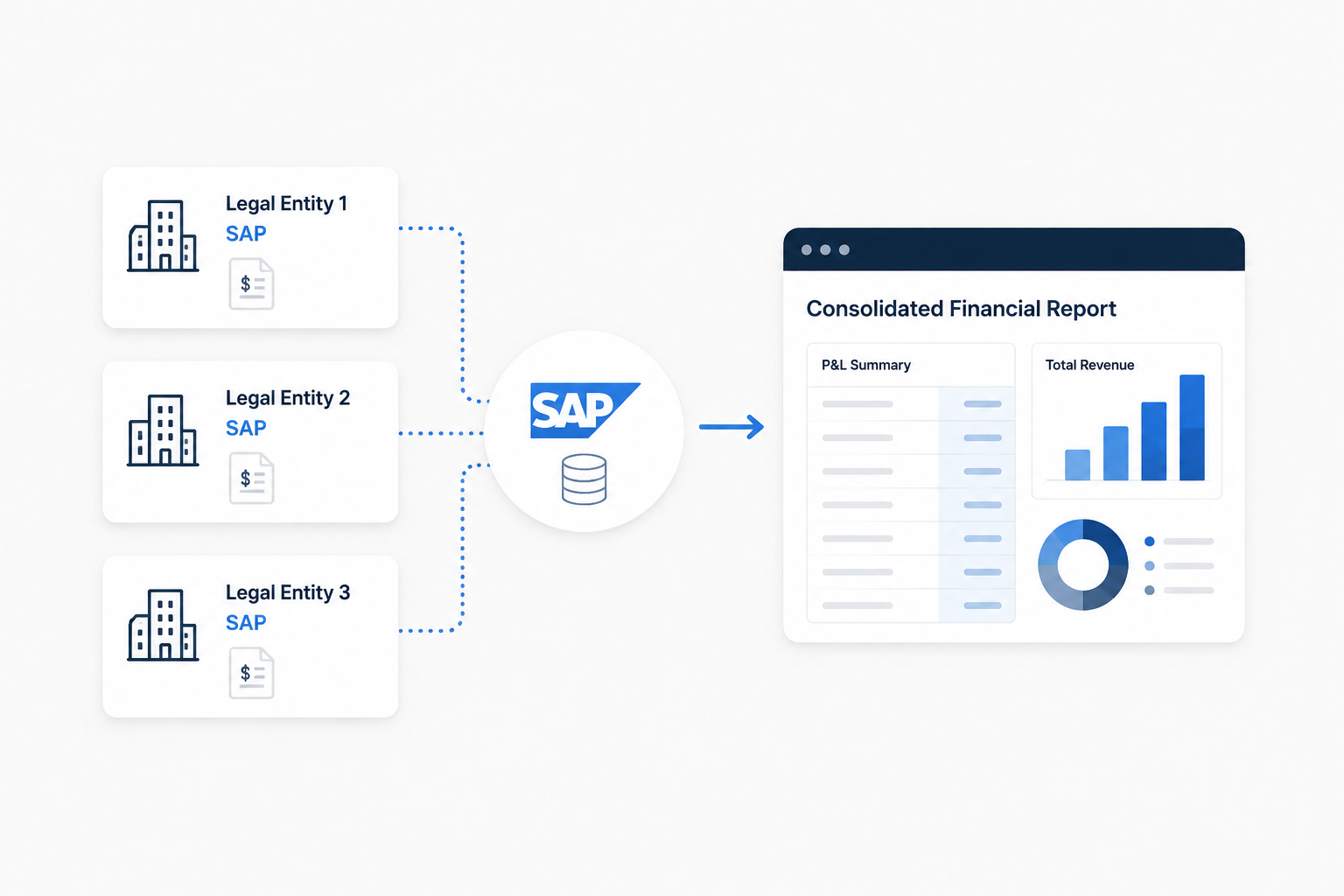
If your company runs on an on-premise ERP, you know the drill: the data is in there, but getting it out is painful. Export to Excel, build manual reports, cross-reference spreadsheets between sales, purchasing, and inventory. Every time someone needs a number, the hunt begins.
The problem isn't your ERP. It does what it was designed to do: invoicing, inventory management, recording transactions. The problem is that your ERP wasn't designed to be your analytics tool. And forcing it into that role ends in endless spreadsheets, outdated data, and decisions made in the dark.
The solution is to extract your data and move it somewhere purpose-built for analysis. That's a cloud data warehouse. And in this guide, we'll show you exactly how to do it.
What is a data warehouse and why should you care
A data warehouse is a database designed specifically for analytics. Unlike your ERP's database (which is optimized for recording transactions), a data warehouse is optimized for answering questions: How much did we sell last month? What's our margin by product? Which customers owe us more than 90 days?
When your data lives in a data warehouse, you can:
- Build dashboards that update automatically
- Cross-reference sales with inventory with purchasing in a single view
- Run historical analysis across years without slowing down your ERP
- Share information with your team without depending on the one person who "knows the system"
We use Google BigQuery as our data warehouse of choice. It's serverless (no infrastructure to maintain), scales automatically, and costs a few dollars per month for a typical SMB.
The complete architecture: from ERP to dashboard
Before diving into the steps, here's the full picture of what we're building:
Your ERP (local server) → Extraction agent (Python) → Google Cloud Storage (raw files) → BigQuery (data warehouse) → dbt (transformation) → Looker Studio (dashboards)
It sounds like a lot, but each piece has a clear role and once it's set up, it runs on its own. Let's go piece by piece.
Step 1: Understand what data your ERP holds
Most on-premise ERPs run on SQL Server (Express or full), PostgreSQL, or MySQL. All the information you see on screen — customers, products, invoices, inventory, vendors — lives in SQL tables that you can query directly.
The most relevant tables for analytics typically fall into these categories:
- Sales transactions: invoice headers and line items
- Inventory: current stock levels by warehouse
- Products/items: master catalog with descriptions, categories, costs
- Customers: contact info, credit terms, sales history
- Purchasing: purchase orders, vendor invoices
- Accounts receivable: outstanding balances, aging
You don't need to extract everything. Start with the tables that answer the most urgent questions for your business. In our experience, sales + inventory + receivables cover 80% of what an SMB needs to see.
Never modify your ERP's tables directly. All database operations should be read-only (SELECT). Modifying data can break the system's integrity.
Step 2: Extract data automatically
The extraction is handled by a lightweight Python agent that runs on the same server as your ERP (or any machine with database access).
The agent does three things:
- Connects to SQL Server using
pyodbcand runs read-only queries on the ERP tables - Generates compressed CSV files (
.csv.gz) with the extracted data - Uploads the files to Google Cloud Storage via HTTPS
The agent is scheduled with Windows Task Scheduler (or cron on Linux) to run once or twice daily — typically in the early morning when nobody is using the ERP. Each run takes between 1 and 5 minutes depending on data volume.
# Simplified extraction flow
import pyodbc
import pandas as pd
from google.cloud import storage

# Connect to SQL Server (ERP database)
conn = pyodbc.connect(
    'DRIVER={SQL Server};'
    'SERVER=localhost;'
    'DATABASE=ERP_DB;'
    'Trusted_Connection=yes;'
)

# Extract sales transactions
query = """
    SELECT h.*, d.item_code, d.quantity, d.unit_price
    FROM sales_header h
    INNER JOIN sales_detail d ON h.invoice_id = d.invoice_id
    WHERE h.invoice_date >= DATEADD(month, -3, GETDATE())
"""
df = pd.read_sql(query, conn)

# Compress and upload to Cloud Storage
df.to_csv('/tmp/sales.csv.gz', compression='gzip', index=False)
# ... upload to GCS bucketThe agent doesn't need ERP application credentials. It connects directly to the SQL Server instance using Windows authentication or a read-only database user. It never touches the ERP application itself.
What if my ERP is hosted remotely?
If your ERP runs on a remote server or terminal server (common with hosted setups), the agent is installed directly on that server. You just need your hosting provider to grant access to install Python and schedule a task. It's a lightweight script that doesn't impact ERP performance.
Step 3: Store in the cloud (Data Lake)
The compressed CSV files land in a Google Cloud Storage bucket organized by date:
gs://your-company-datalake/
  └── raw/
      ├── 2026-04-20/
      │   ├── sales.csv.gz
      │   ├── inventory.csv.gz
      │   └── customers.csv.gz
      └── 2026-04-19/
          ├── sales.csv.gz
          └── ...
This is your "smart backup" of business data. Even though your ERP continues running normally, you have a complete history of your data in the cloud, organized and versioned. That alone has value: if you ever need to see what your inventory looked like 6 months ago, it's there.
Storage cost for a typical SMB is less than USD 1 per month. Literally pennies.
Step 4: Load into BigQuery (Data Warehouse)
From Cloud Storage, data is automatically loaded into BigQuery as raw tables. This load can be triggered every time a new file arrives, or scheduled with Cloud Scheduler.
At this stage, data arrives exactly as it came from the ERP: same column names, same formats, same codes. It's not easy to analyze yet — but it's now in a place where we can work with it.
BigQuery
└── your_company_raw
    ├── raw_sales            (invoice headers + details)
    ├── raw_customers        (customer master)
    ├── raw_items            (product catalog)
    ├── raw_inventory        (stock levels)
    ├── raw_purchasing       (purchase orders)
    └── raw_receivables      (account balances)
Step 5: Transform with dbt (the key step)
This is where raw data becomes useful information. dbt (data build tool) transforms data using pure SQL, with built-in testing and documentation.
What dbt does in our pipeline:
- Cleaning: renames cryptic ERP columns (like
GVA12.T_COMP→document_type), converts date formats, handles null values - Standardization: normalizes categories, unifies codes, creates calculated fields (margin, receivables aging, days of stock)
- Modeling: creates clean dimensions and fact tables ready for analytics
The result is clean, clear tables:
BigQuery
└── your_company_analytics
    ├── dim_customers        (name, region, category, tenure)
    ├── dim_items            (description, category, family, cost)
    ├── fact_sales           (date, customer, item, qty, amount, margin)
    ├── fact_purchasing      (date, vendor, item, qty, amount)
    ├── fact_inventory       (item, warehouse, qty, valuation)
    └── fact_receivables     (customer, document, amount, balance, aging)
The advantage of dbt is that every transformation is documented and tested. If a margin calculation goes wrong, there's a test that catches it automatically. It's the difference between a fragile spreadsheet and a robust system.
Step 6: Visualize with Looker Studio (Dashboards)
With clean data in BigQuery, building dashboards is the fastest part. We use Looker Studio (free from Google), which connects natively to BigQuery.
The 5 dashboards we build as a baseline:
- Executive: total sales, margin, top customers, monthly trend
- Sales: analysis by rep, product, region, year-over-year comparison
- Inventory: current levels, stockouts, overstock, turnover
- Receivables: total debt, aging, delinquent accounts, trend
- Purchasing: spend by vendor, payment terms, price comparison
Each dashboard updates automatically with every extraction. Your team opens a link, sees today's numbers, and makes decisions. No asking someone to "pull the data."
What this costs
Let's be concrete about monthly costs for a typical SMB:
- Google Cloud Storage: less than USD 1/month
- BigQuery: between USD 5 and USD 20/month (depends on query volume)
- Looker Studio: free
- Agent server: you already have it (same server running your ERP)
- Cloud Scheduler + Functions: less than USD 1/month
Total infrastructure cost: USD 10-25 per month. Less than a license for any reporting tool.
Development and implementation cost is separate and depends on your case's complexity, but it's a one-time investment. Once built, the pipeline runs on its own with minimal operational costs.
How long does implementation take
For a typical SMB with a standard ERP:
- Week 1: Table mapping, query definition, agent installation
- Week 2: Cloud Storage + BigQuery setup, initial data loads
- Week 3: dbt transformations (staging + analytics models)
- Week 4: Looker Studio dashboards + team feedback and adjustments
In one month you have the complete pipeline running. And from there, adding new tables, new dashboards, or new analyses is incremental — you never start from scratch.
What if I use a different ERP?
The architecture is identical for any ERP running on a relational database. Whether you use SAP Business One, Odoo, NetSuite, or any other, what changes are the extraction queries and the transformation models. The cloud infrastructure is the same.
Even if your data source is an Excel file that someone exports daily, we can start there and professionalize later.
Conclusion
Having your company's data trapped in a local ERP is like having money in a safe without the key. You know it's there, but you can't use it when you need it.
Connecting your ERP to a cloud data warehouse isn't an innovation project. It's basic infrastructure that every SMB should have: accessible data, up-to-date dashboards, and decisions based on real information instead of intuition.
The cost is low, implementation is fast, and the impact is immediate from the first dashboard your team opens in the morning.
At Richmond Analytics, we design and build this architecture for SMBs. If you want to see your business data in dashboards that update automatically, let's talk.